https://www.makeuseof.com/create-windows-virtual-machine-in-linux-with-kvm
1. Install and Configure the Necessary KVM Software
As a first step, you need to check if your CPU supports virtualization and whether it’s enabled on your system. To do so, run:
grep -Ec '(vmx|svm)' /proc/cpuinfo
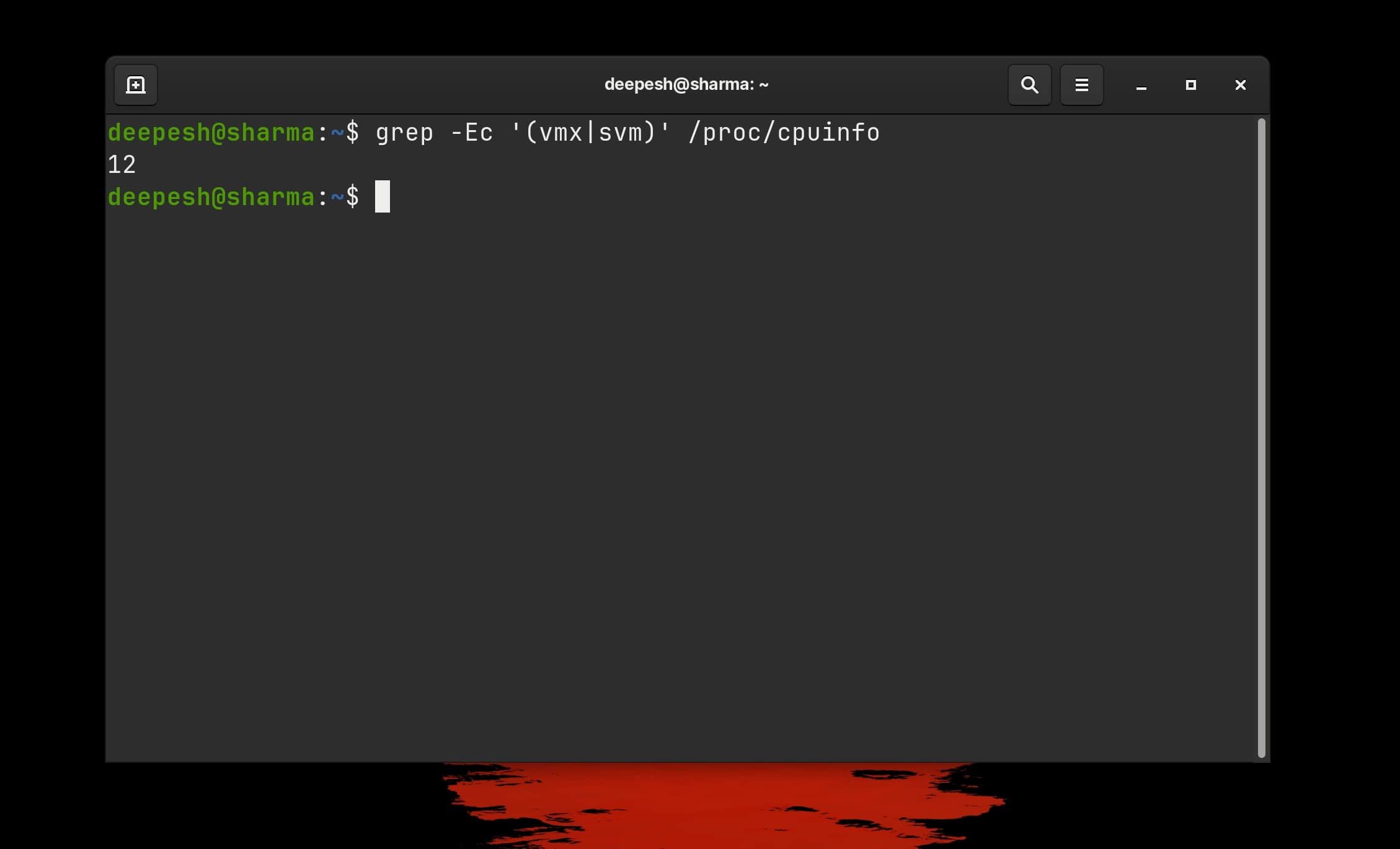
Output greater than 0 denotes that virtualization is enabled and you can proceed. If otherwise, restart your PC, go to the BIOS options, and enable virtualization support.
If this is your first time working with KVM, you must understand Kernel-based Virtual Machines and how they work.
Once virtualization is set up, install the required KVM packages from your distro’s repositories. The installation command will vary depending on the distro you’re using.
On Debian and Ubuntu-based distributions, run:
sudo apt install qemu-kvm libvirt-daemon bridge-utils virt-manager
On Arch Linux and its derivatives:
sudo pacman -S qemu-kvm libvirt bridge-utils virt-manager
Install KVM packages on Fedora and RHEL with:
sudo dnf install @virtualization
Next, enable and start the libvirt daemon by running:
        sudo systemctl enable libvirtd
sudo systemctl start libvirtd
Check whether libvirtd is running properly with:
sudo systemctl status libvirtd
If the output returns „active“ in green, you can safely proceed. If it displays „inactive“ in red, run the above commands again.
Finally, add your user to the libvirt and kvm groups with:
        sudo usermod -aG libvirt $(whoami)
sudo usermod -aG kvm $(whoami)
2. Download the Windows 10 ISO
With virtualization configuration out of the way, you’re now ready to create a virtual machine. But first, download the Windows 10 ISO file that you’ll use to boot the VM.
Head over to the Windows 10 downloads page and scroll down to select Windows 10 (multi-edition ISO) from the Select edition dropdown menu. Then, click Confirm.
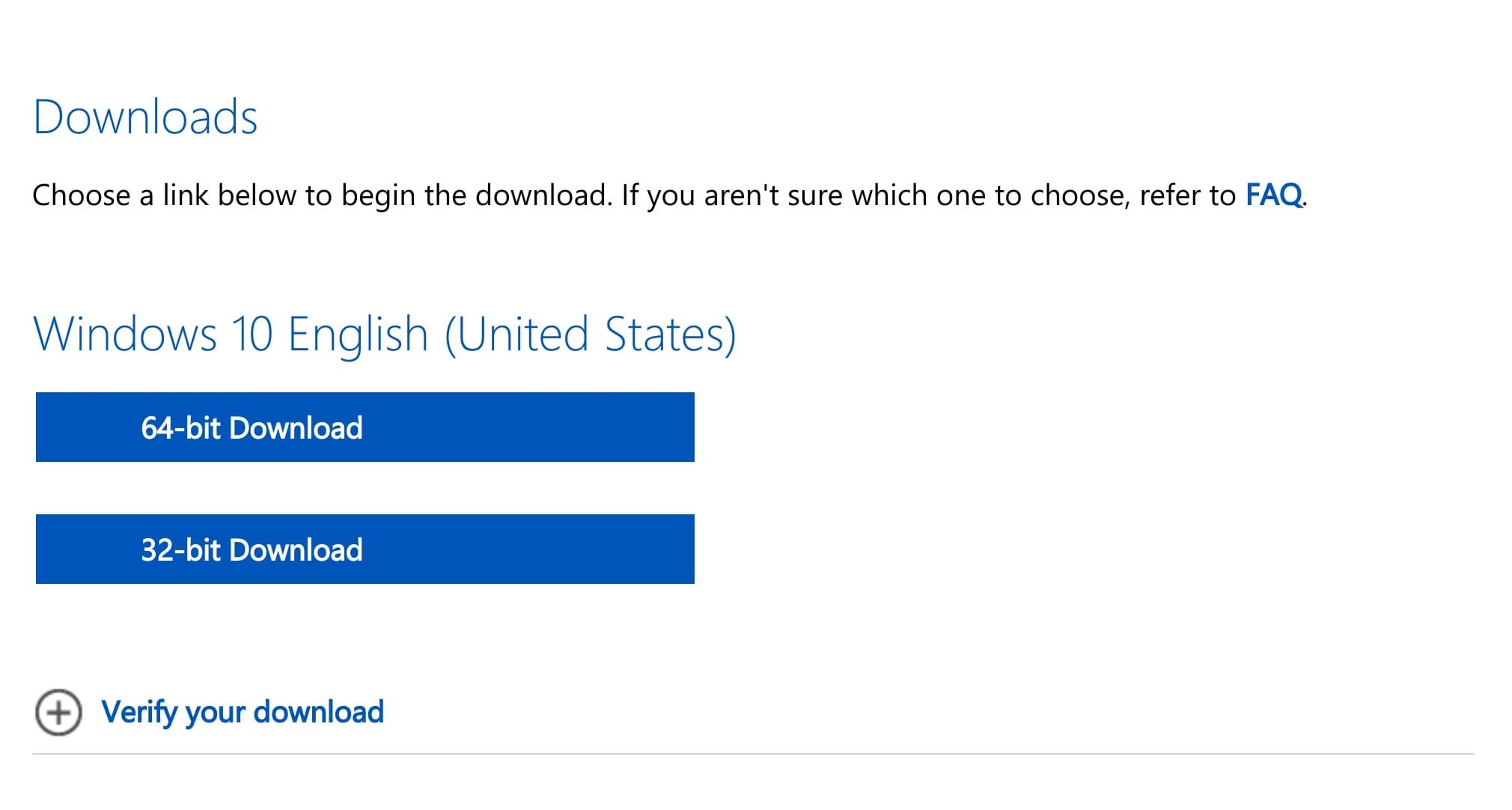
Select the appropriate language and hit Continue. You’ll now have two options to download the 64- and 32-bit editions of Windows 10. Click on the one you wish to install.
Download: Windows 10 (Free)
3. Create a New KVM Using virt-manager
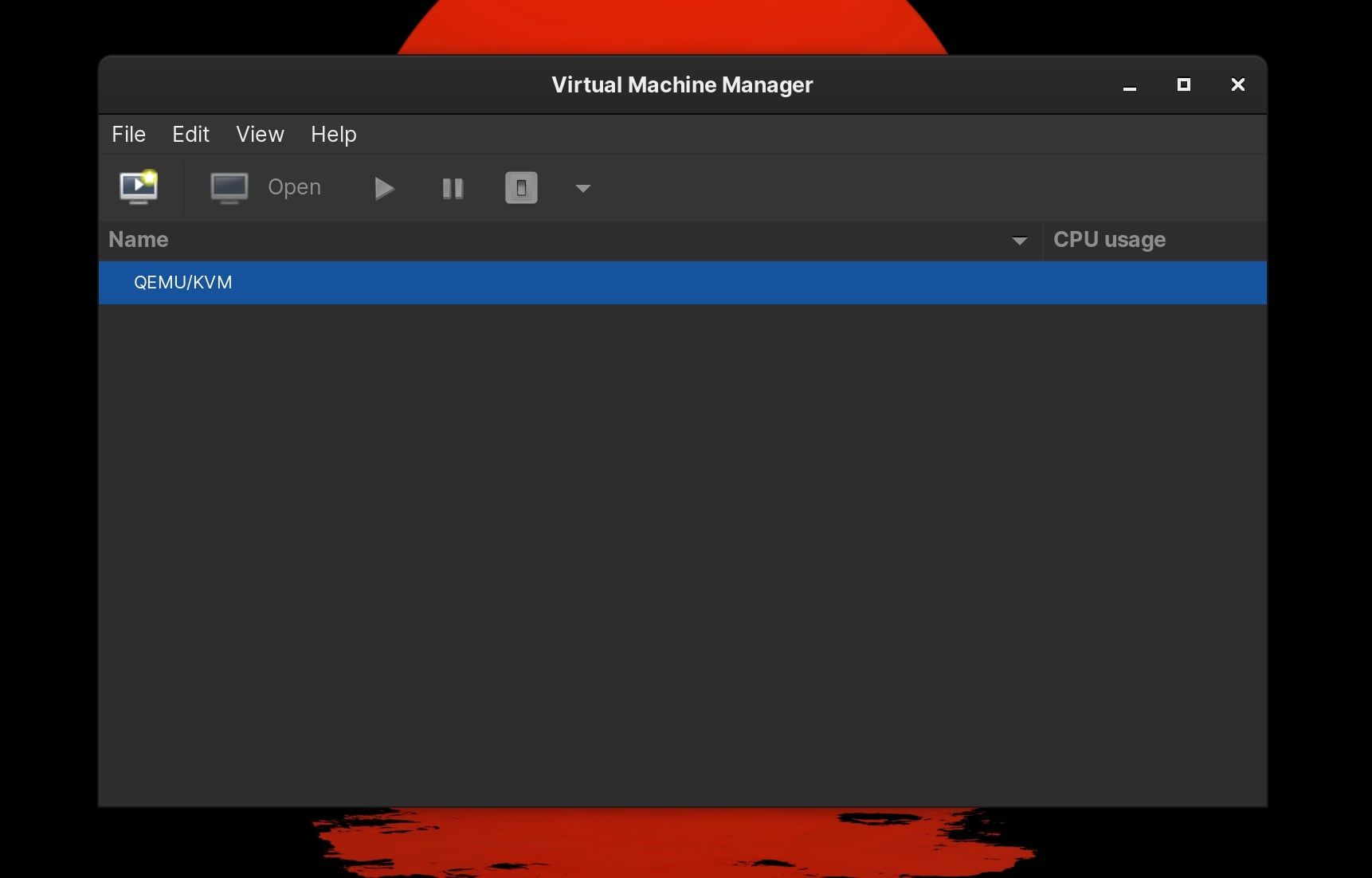
Launch Virtual Machine Manager by typing virt-manager in the command line or from the applications menu. Click the Create a new virtual machine option (the desktop icon with a play button in the middle) to continue.
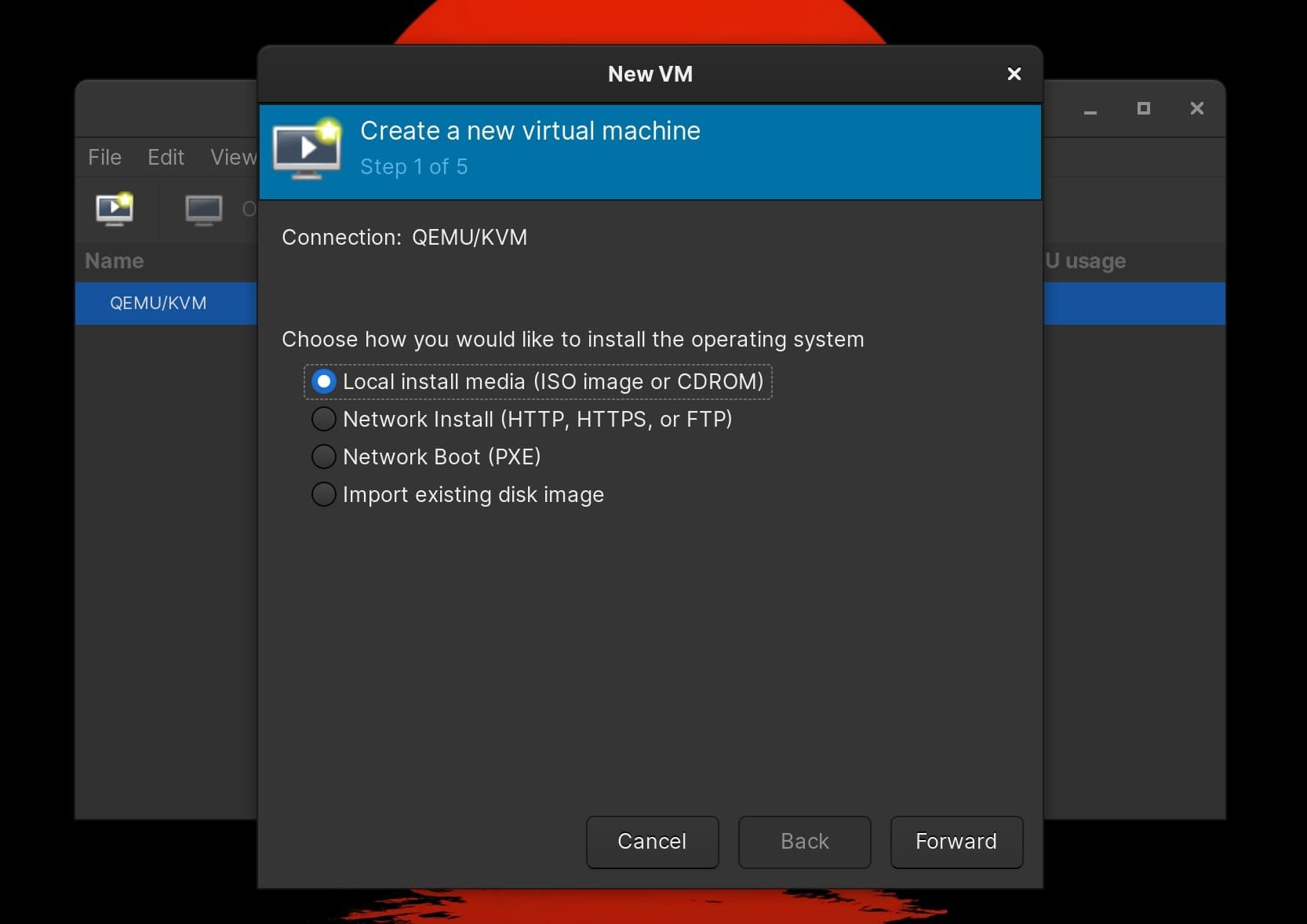
Continue with the default selection—Local install media—and click Forward.
Click Browse > Browse Local and select the downloaded Windows 10 ISO file from your storage. Click Open to select the ISO image. Virtual Machine Manager will automatically detect the OS. Click Forward to proceed.
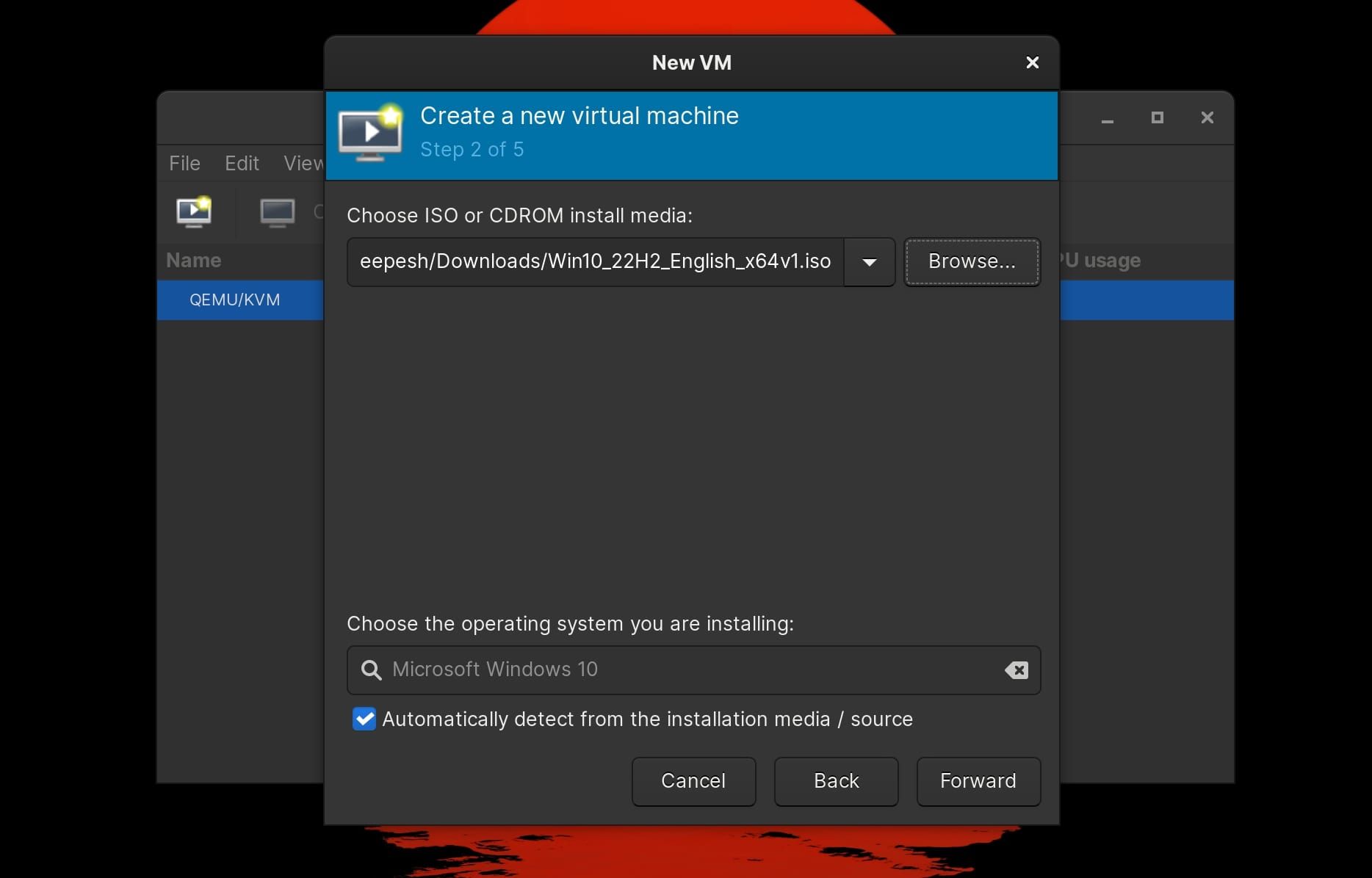
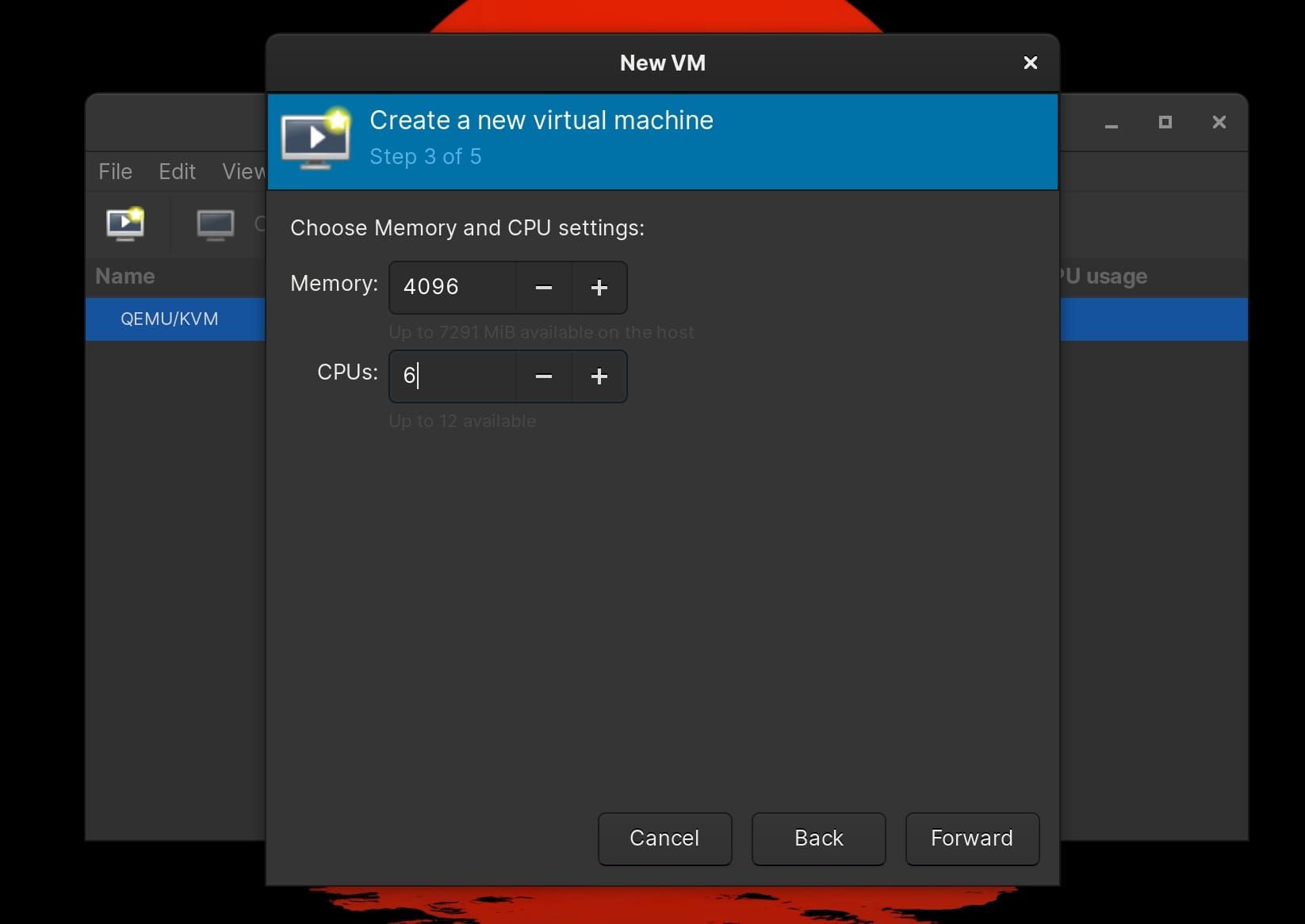
Specify the amount of memory and CPU cores you want to allocate to the virtual machine. For starters, half of your computer’s actual memory will be more than enough. Regarding CPU cores, select anything ranging from one-third to half of the available cores. Once done, hit Forward.
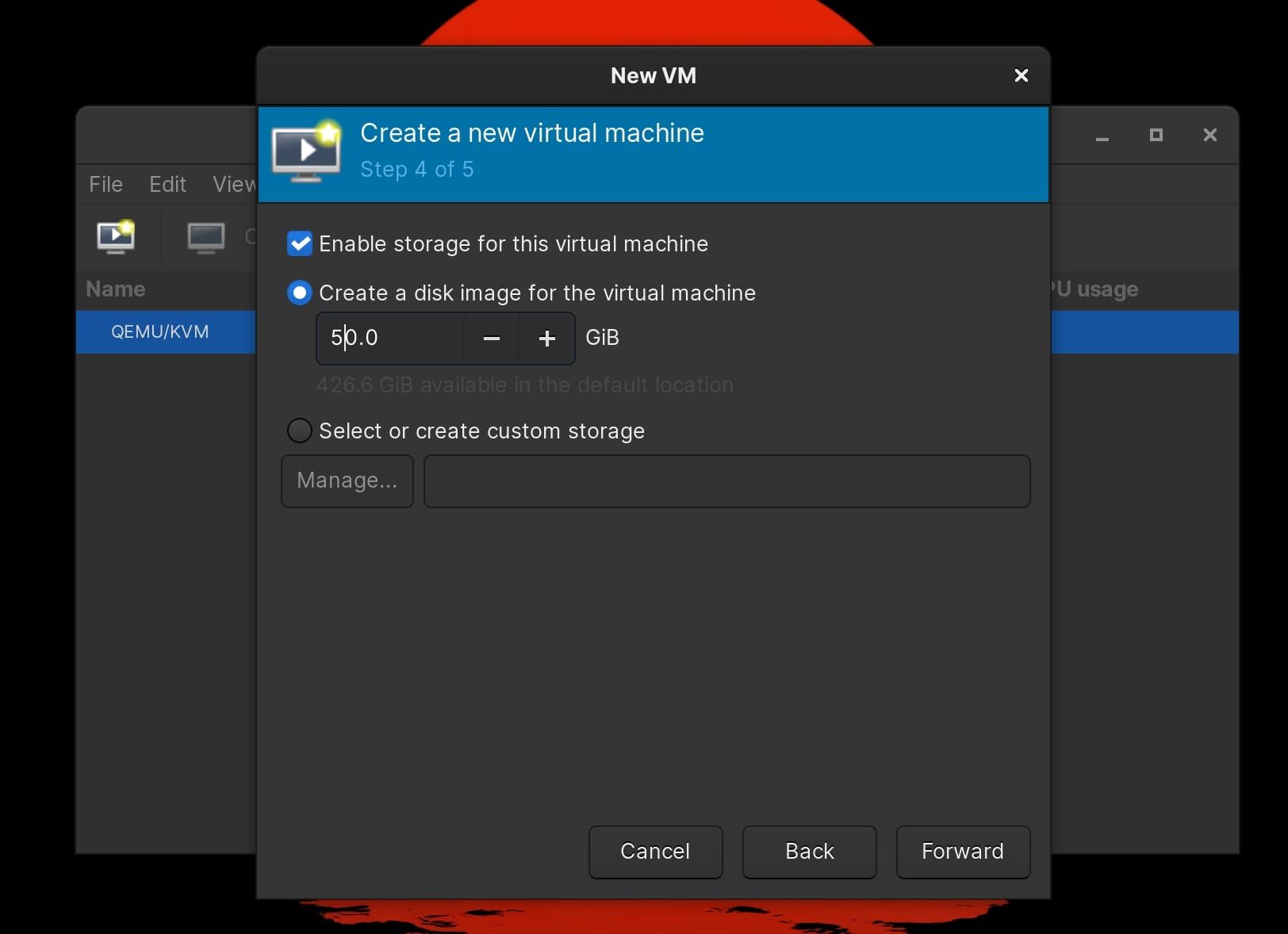
On the following window, make sure Enable storage for this virtual machine is checked off. Then, specify the size of the disk image (50GB will suffice) and click Forward.
Type in the virtual machine’s name and click Finish once you’ve reviewed the VM specifications.
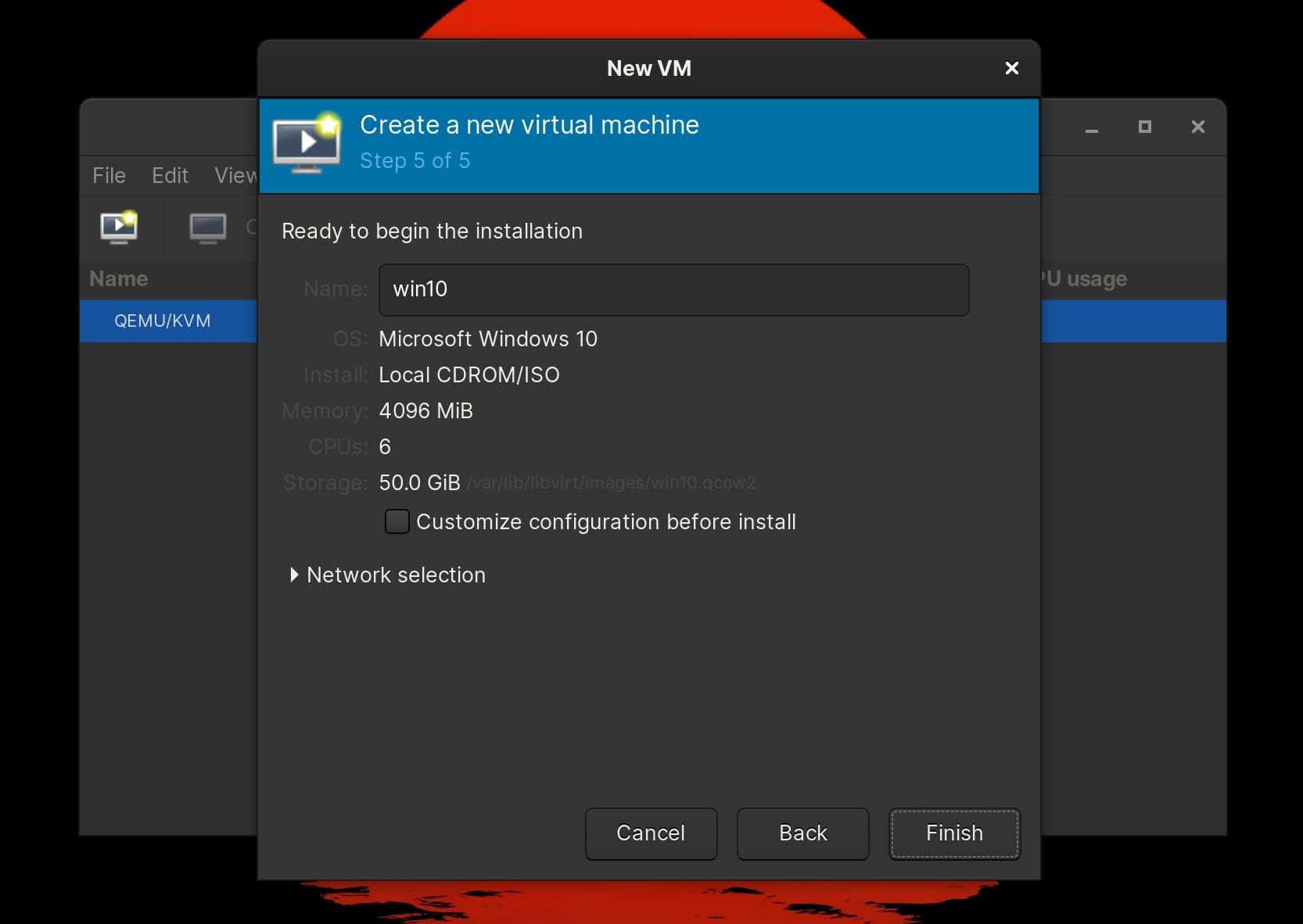
Virtual Machine Manager will now create the machine and boot it up right after.
4. Install Windows 10 on the KVM
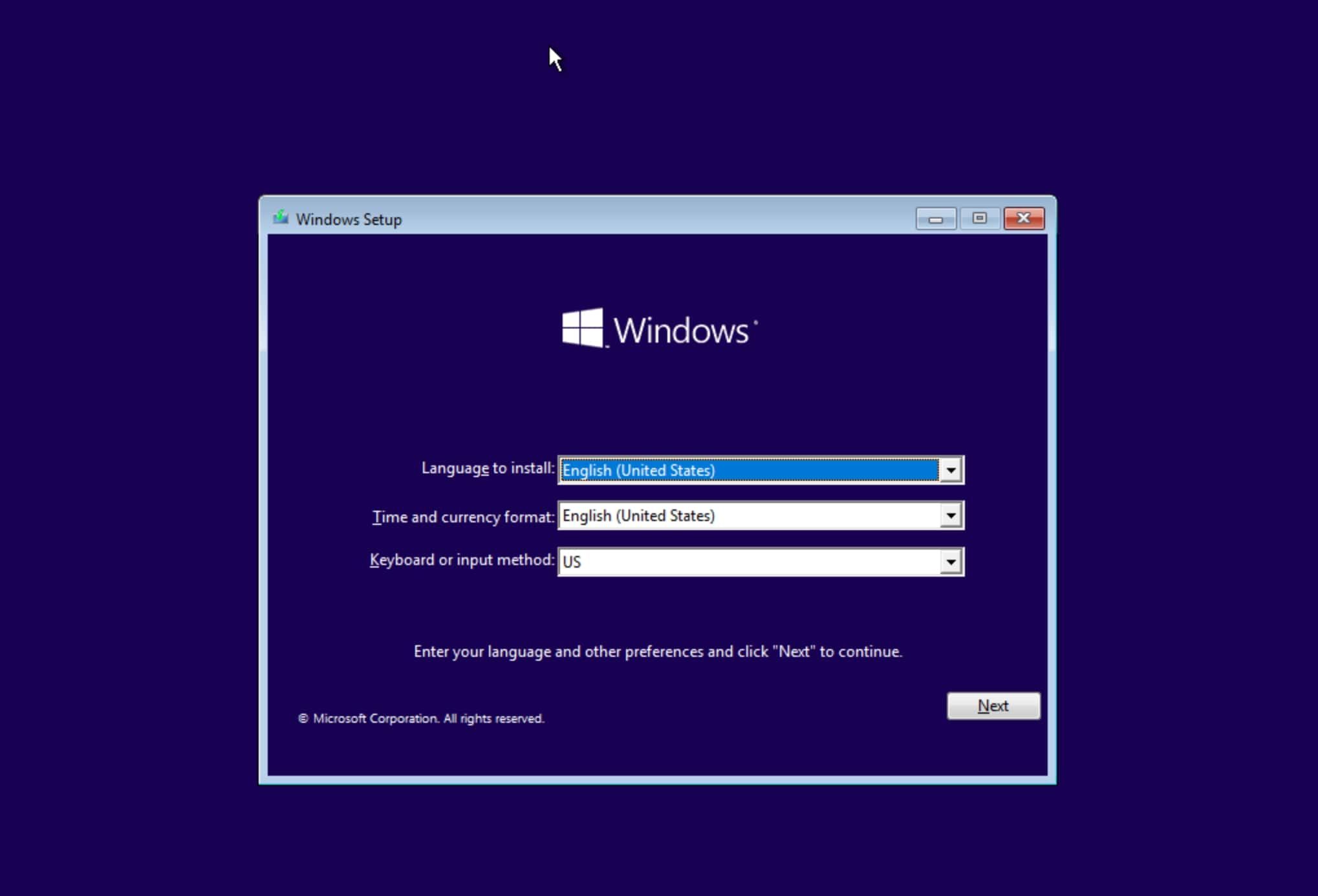
A new Virtual Machine Manager window will pop up, within which you can see your Windows machine booting. The screen will turn blue and you’ll see the Windows Setup box appear.
Select the Language to install, Time and currency format, and Keyboard or input method from the list of available options. Once done, hit Next > Install Now.
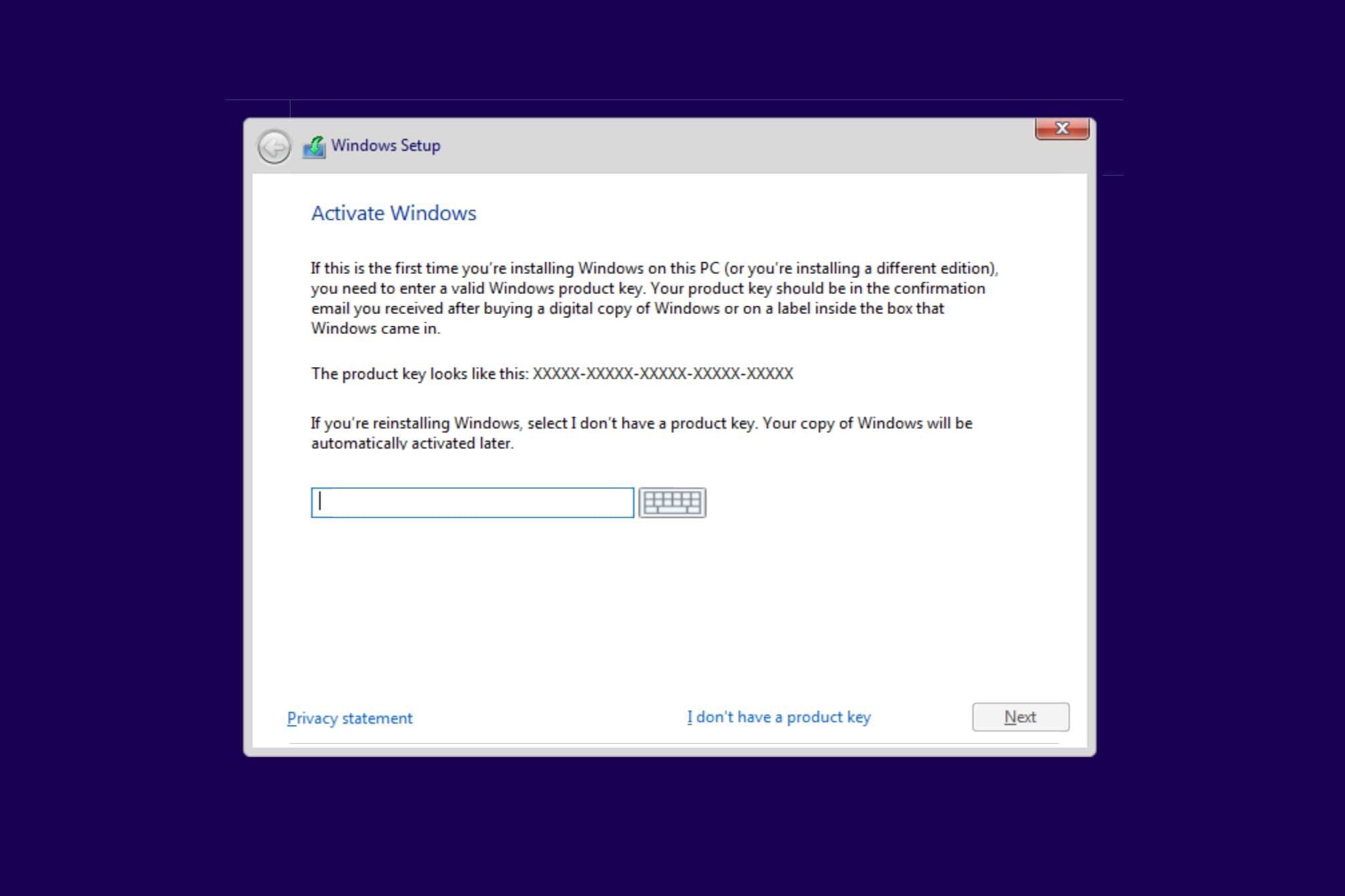
The setup process will now start and you’ll be asked to enter a product key. Type in the product key if you have one. Otherwise, select I don’t have a product key.
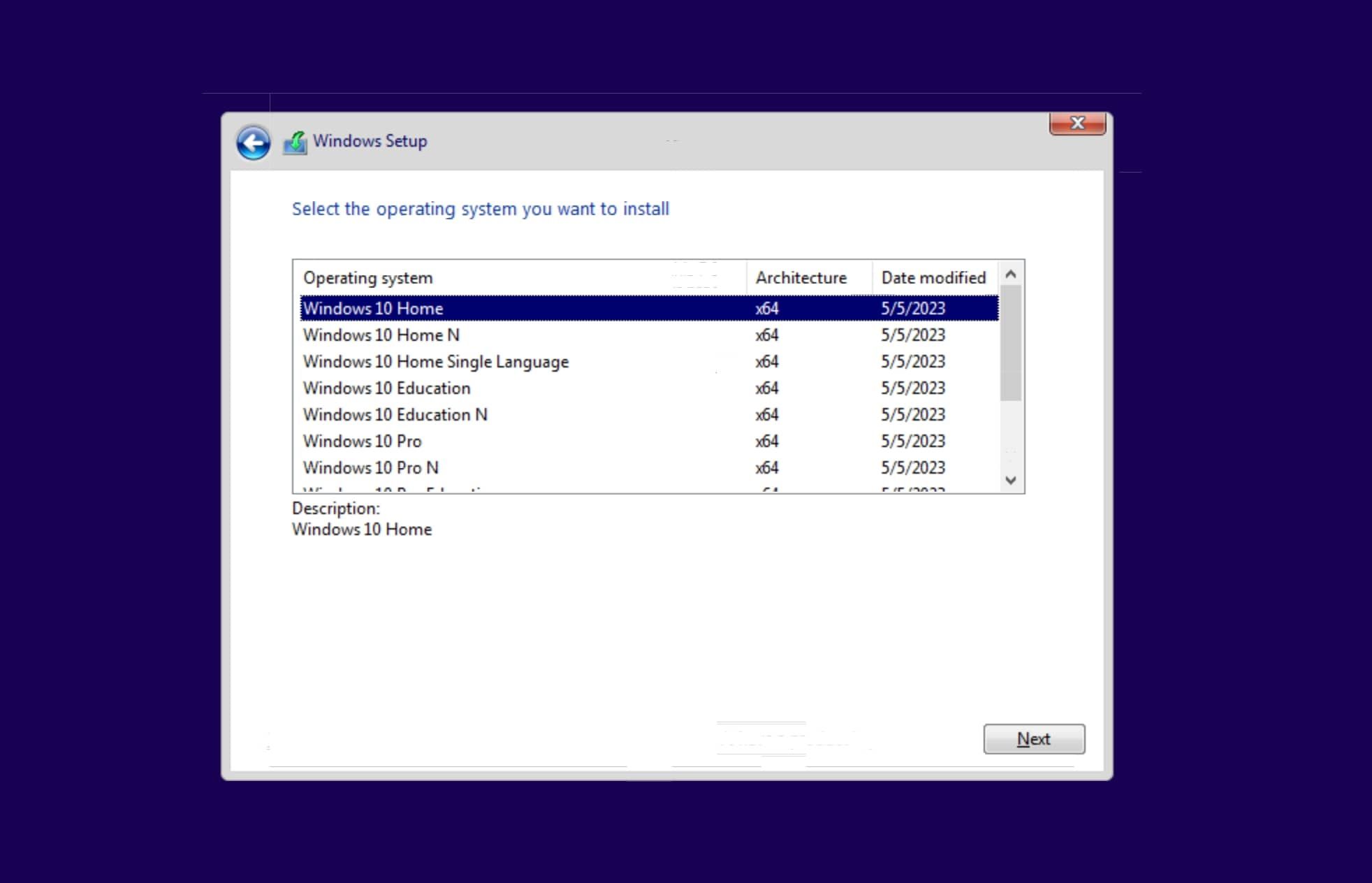
There are different versions of Windows 10 you can install. Choose the one you’d like to install and click Next. On the following screen, check off the box next to I accept the license terms and click Next.
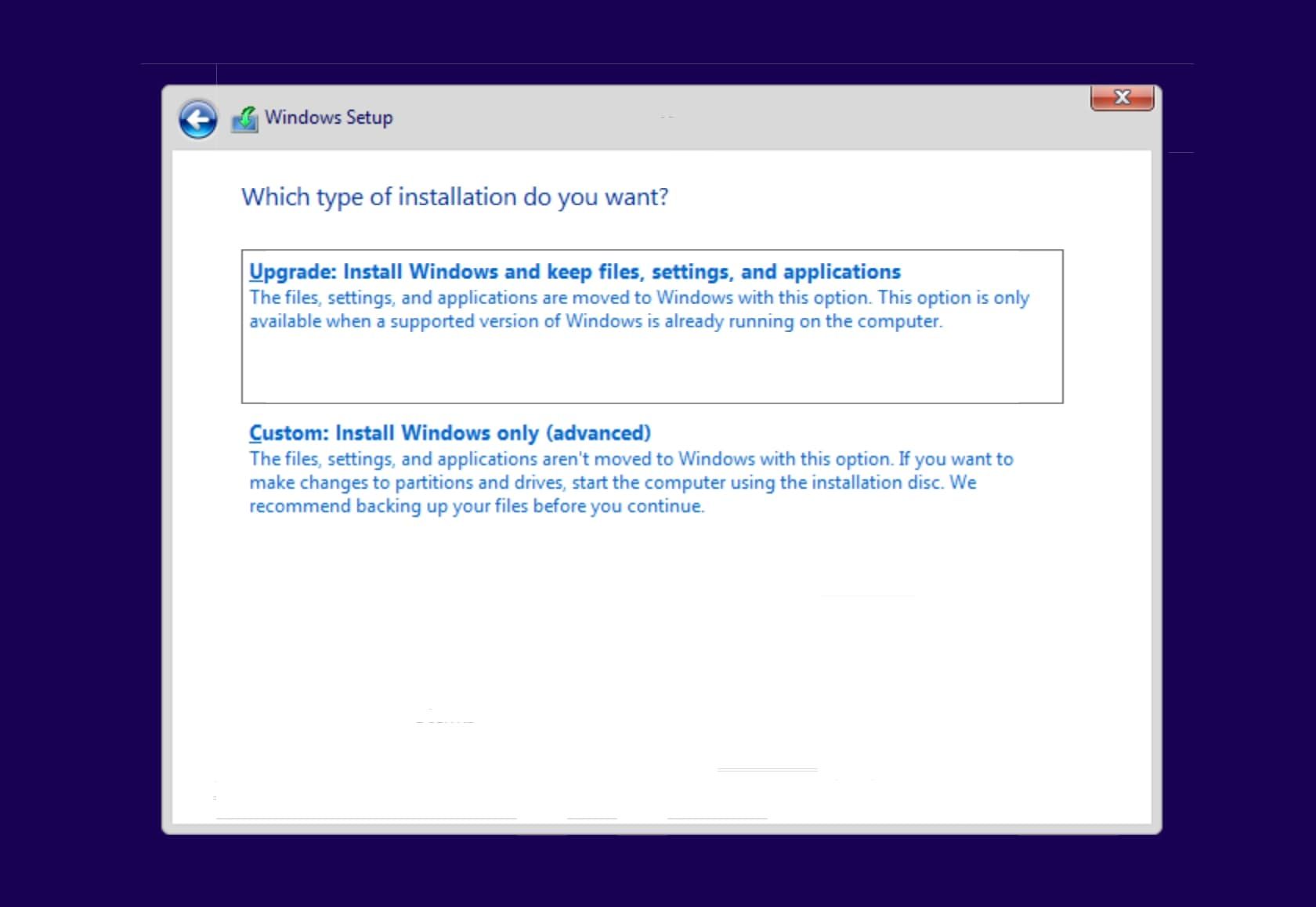
Select Custom: Install Windows only (advanced) since the virtual machine doesn’t have Windows installed on it already.
On the next screen, partition the drive using the New, Delete, and Format options if you’d like to have multiple drives. For those who like to set up a single partition, click Next.
Windows will now start installing on the virtual machine. You’ll go through these steps: Copying Windows files, Getting files ready for installation, Installing features, Installing updates, and Finishing up.
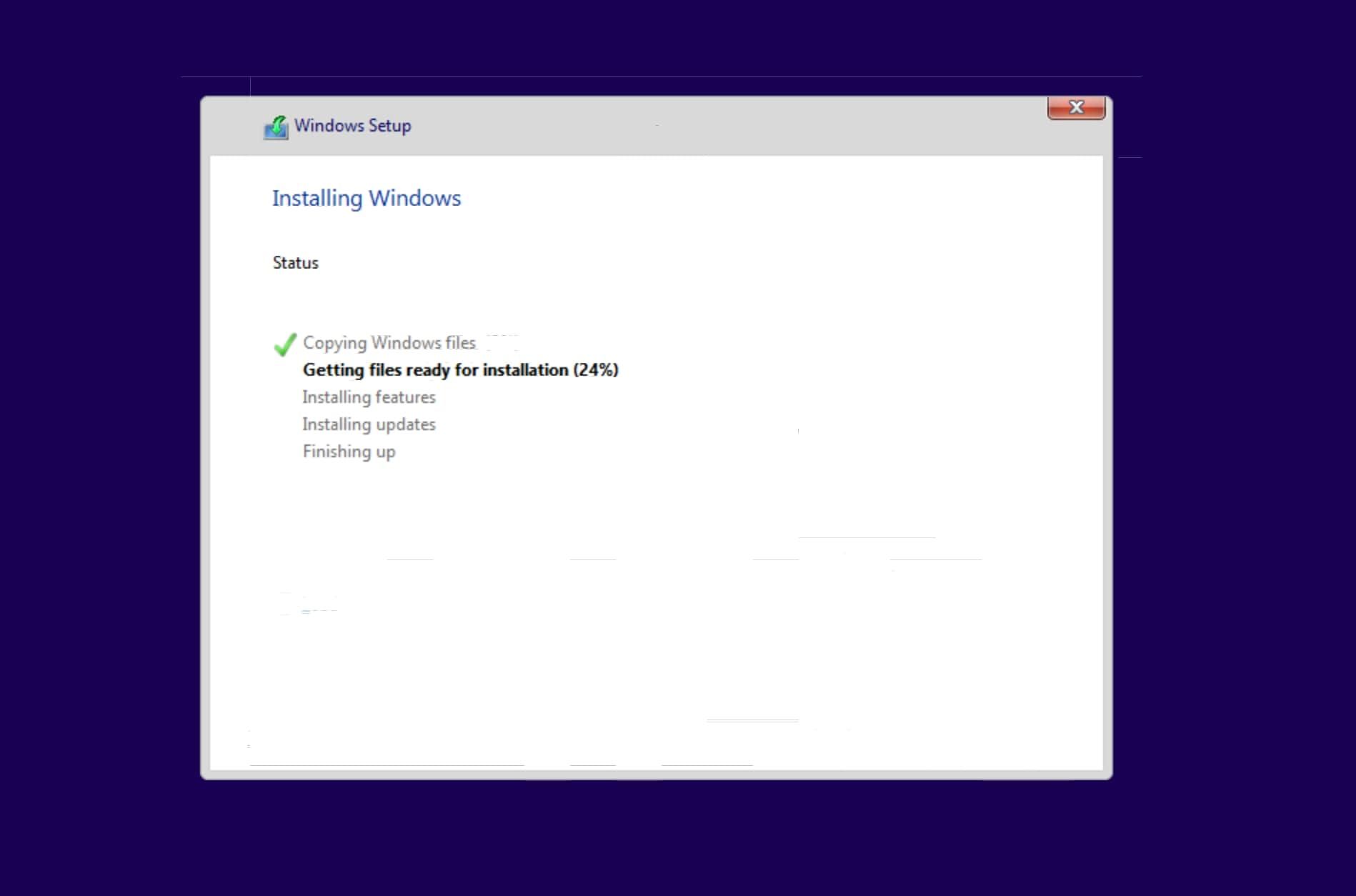
The virtual machine might restart several times during installation, so don’t fret and let Windows Setup do its work.
After Windows has finished installing, you’ll see the Cortana Welcome screen. Click the little microphone icon at the bottom left to turn off Cortana. Next, select your geographical location and click Yes.

Choose a keyboard layout and click Yes. If you want to add a second layout, select Add layout. Otherwise, click Skip. You might have to wait for several minutes after this step.
Next, add your Microsoft account to continue. If, as a Linux user, you don’t prefer sharing your email information, use a dummy email address and password for now. Windows will throw an incorrect password error. Then, click Next to skip adding the correct email address

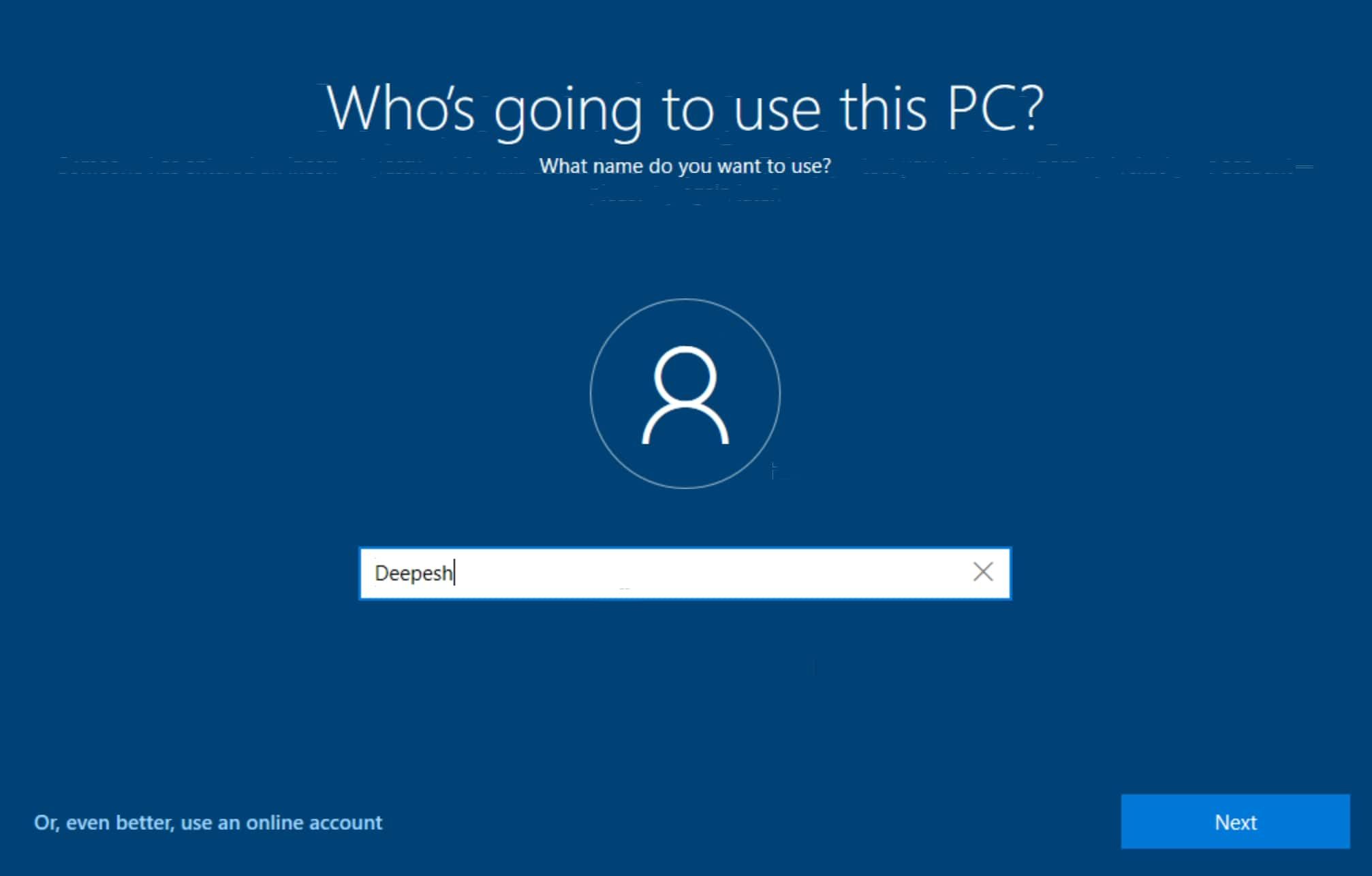
On the following screen, enter your name and password. Next, select and answer three security questions to continue.
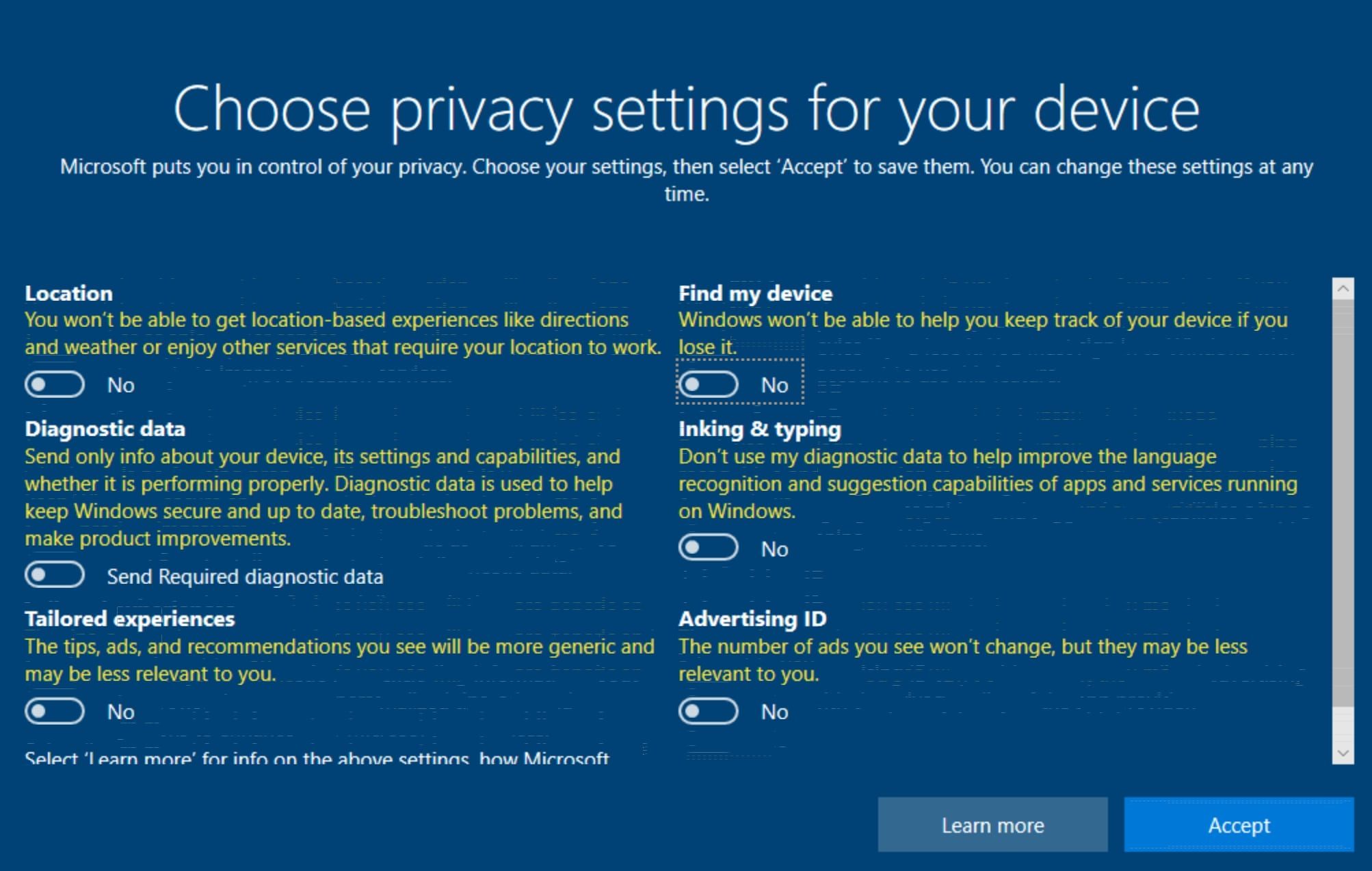
The Choose privacy settings for your device screen will appear. Disable all the options if you don’t like to share usage data with Microsoft. Then, click Accept.
Skip the Let’s customize your experience screen and select Not now when it asks you to share personal information with Cortana. Following that, Windows will customize a few other things for you before booting you to the desktop.
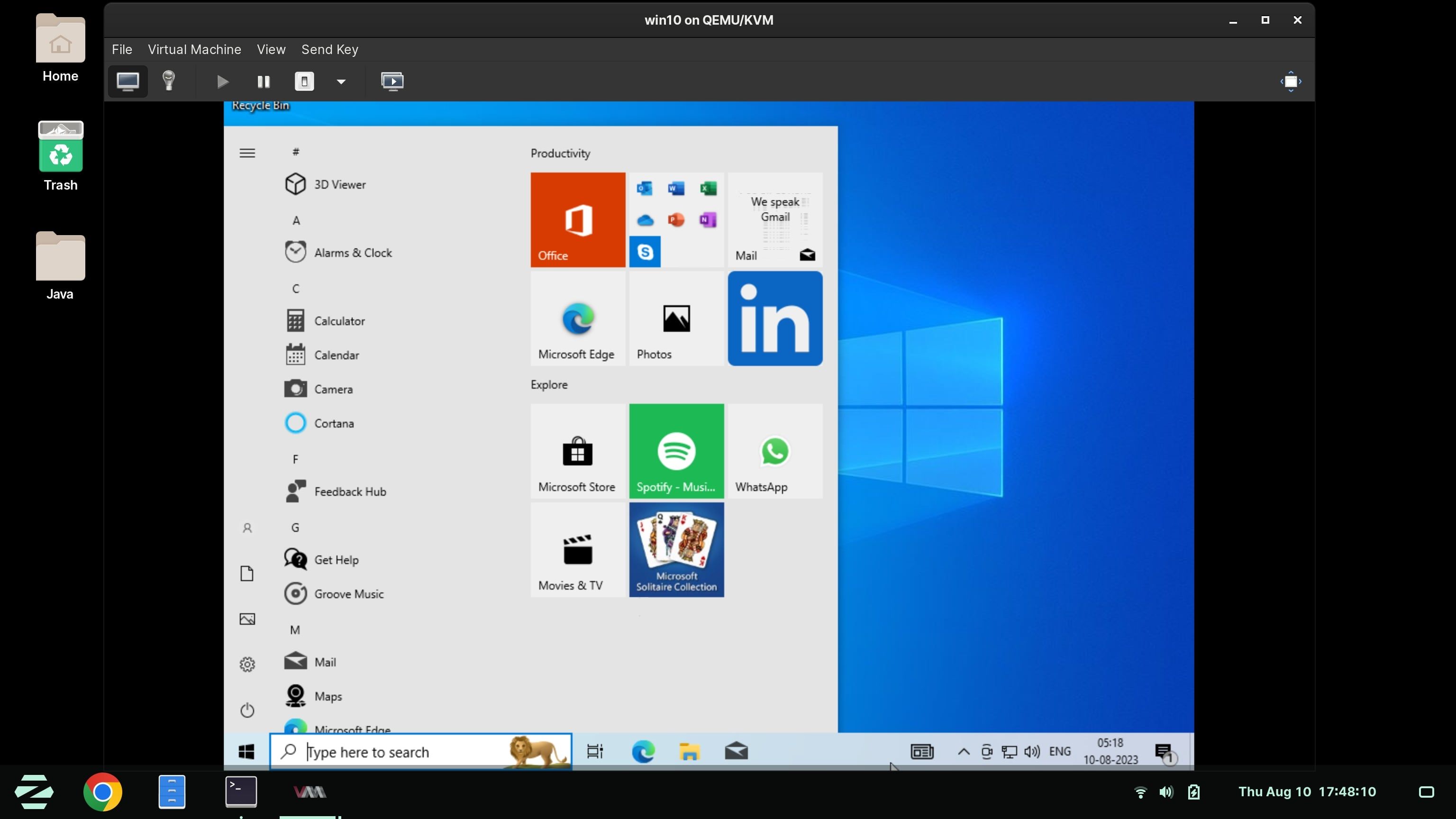
If you don’t fancy KVM, why not go for other hypervisors like VirtualBox or VMware to install Windows?
You Aren’t Limited to Just KVM on Linux
That’s how easy it was to install Windows 10 using a KVM on Linux. But don’t stop here. Try all sorts of Linux distros and other open-source operating systems by installing them in virtual machines.
You’re not limited to using Kernel-based Virtual Machine on Linux. If you want, you can even go for other hypervisors like VirtualBox or VMware to install Windows on your Linux machine.